Create a project and compile BRiefFiniteElement from source code
After downloading the source code you should reference the main projects of bfe in your C# project.
we will use Visual Studio 2015 in next. you can use any version of Visual Studio IDE including free express or community version. by the way it is downloadable from https://visualstudio.microsoft.com/.
In next we will use visual Studio 2015…
Some users reported project does not build with Visual Studio 2017, there are some workarounds in (`issue #42 on project on github<https://github.com/BriefFiniteElementNet/BriefFiniteElement.Net/issues/42>`_).
Creating new project
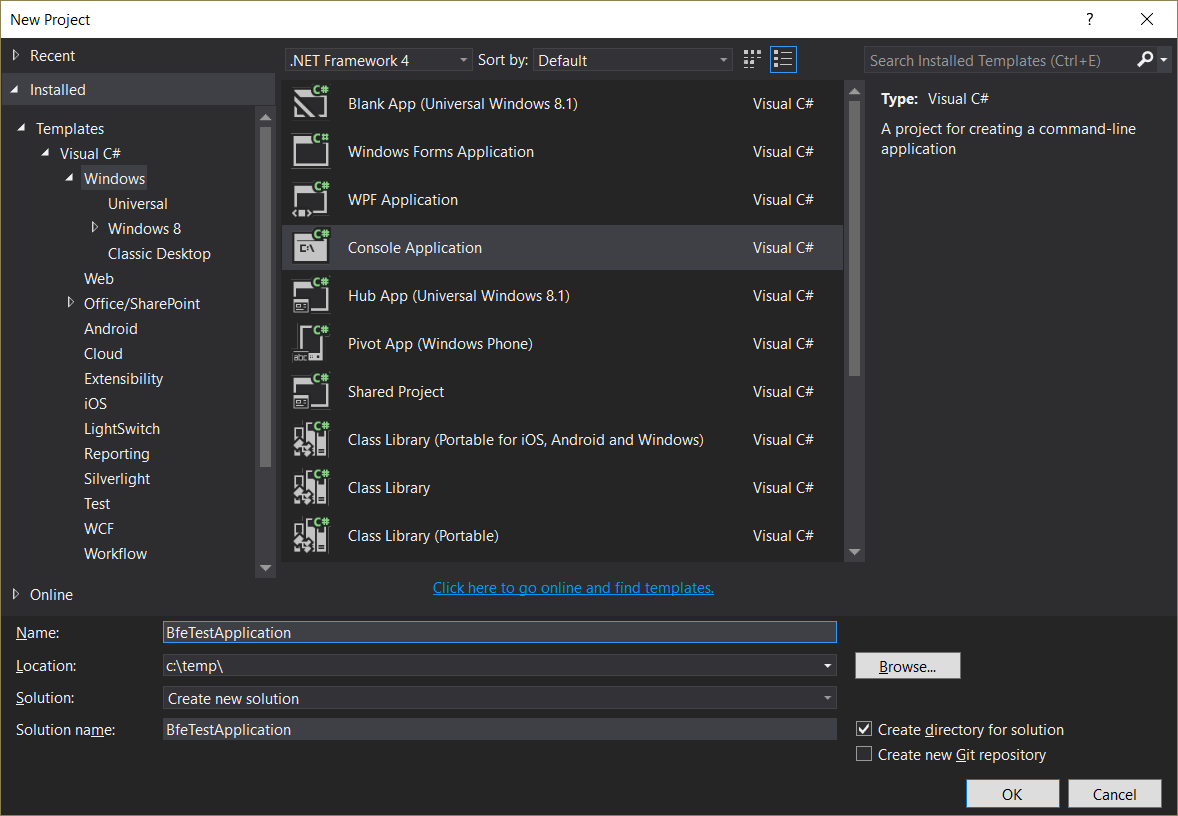
After installation, Create a new C# application with name BfeTestApplication and type Console Application (More Info).
Add BFE codes (projects) into solution
You should add the actual BFE core codes into your solution. (More Info).
To add BFE code to your solution, do the following:
1- In Solution Explorer, select the solution.
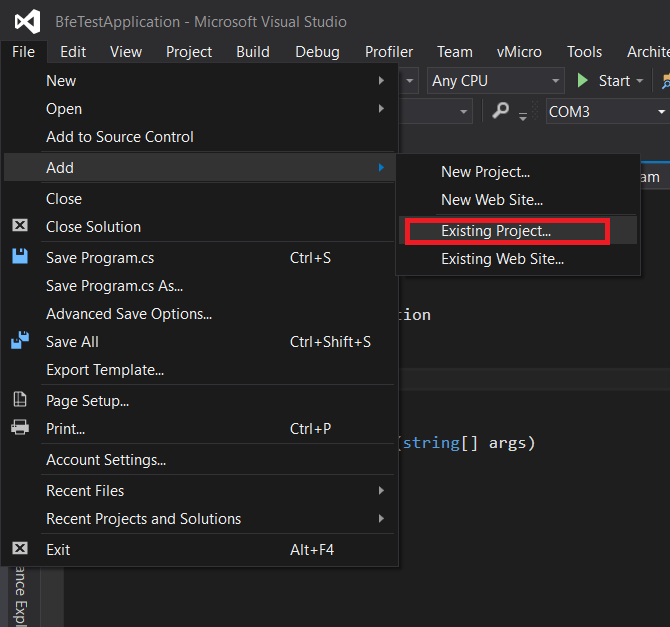
2- On the File menu, point to Add, and click Existing Project.
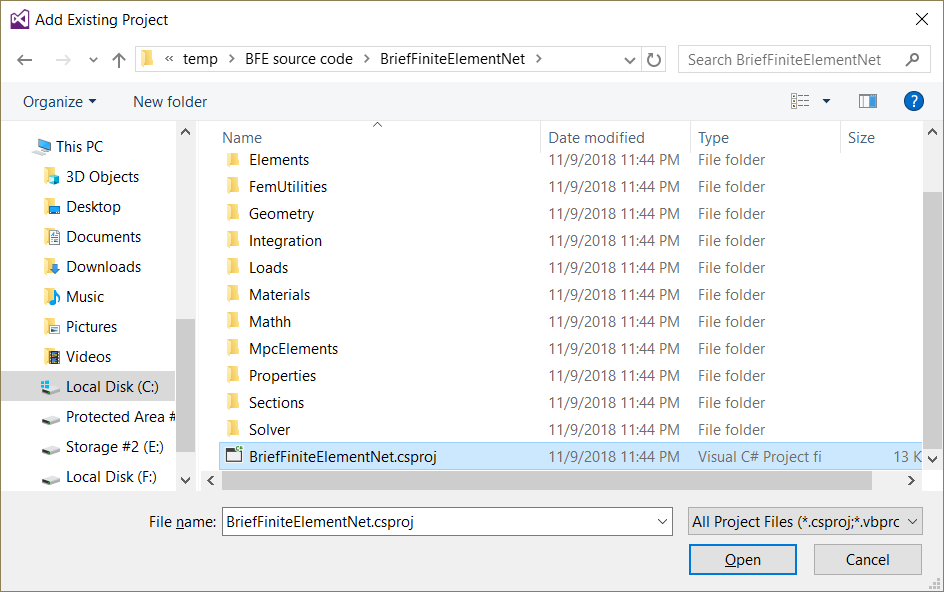
3- In the Add Existing Project dialog box, locate the project you want to add, select the project file, and then click Open.
you should add two projects to your solution:
1- BriefFiniteElementNet located at <root folder>\BriefFiniteElementNet\BriefFiniteElementNet.csproj
2- BriefFiniteElementNet.Common located at <root folder>\BriefFiniteElementNet.Common\BriefFiniteElementNet.Common.csproj
adding two projects,

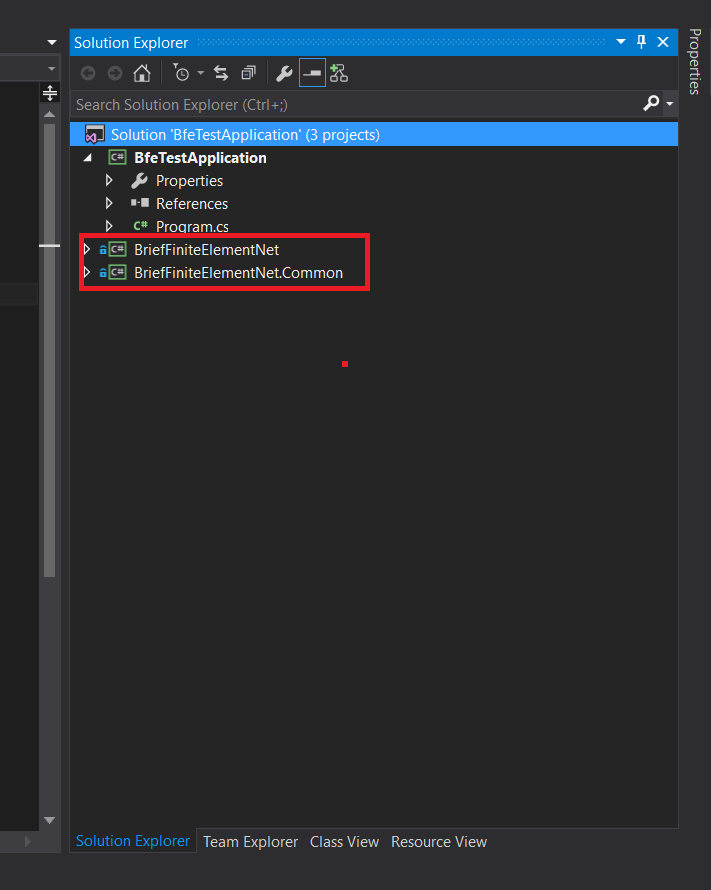
after adding two projects, solution explorer tab in visual studio should looks like this:
Add reference of BFE projects into first project
Now two C# projects BriefFiniteElementNet and BriefFiniteElementNet.Common are added to our solution. next we should add a reference of each one into first project named BfeTestApplication (More Info).
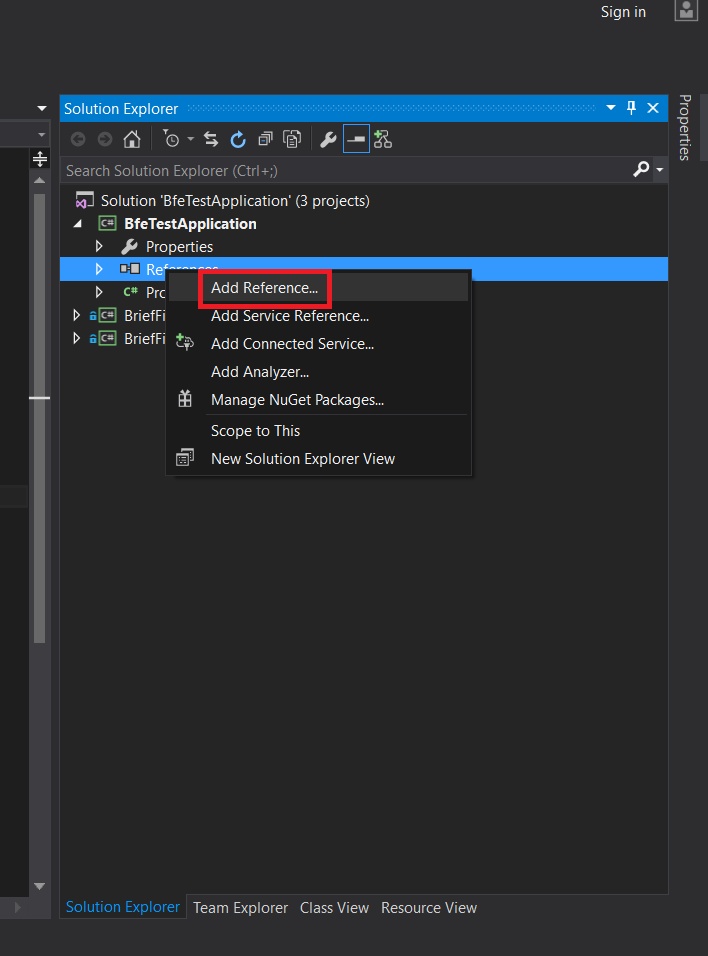
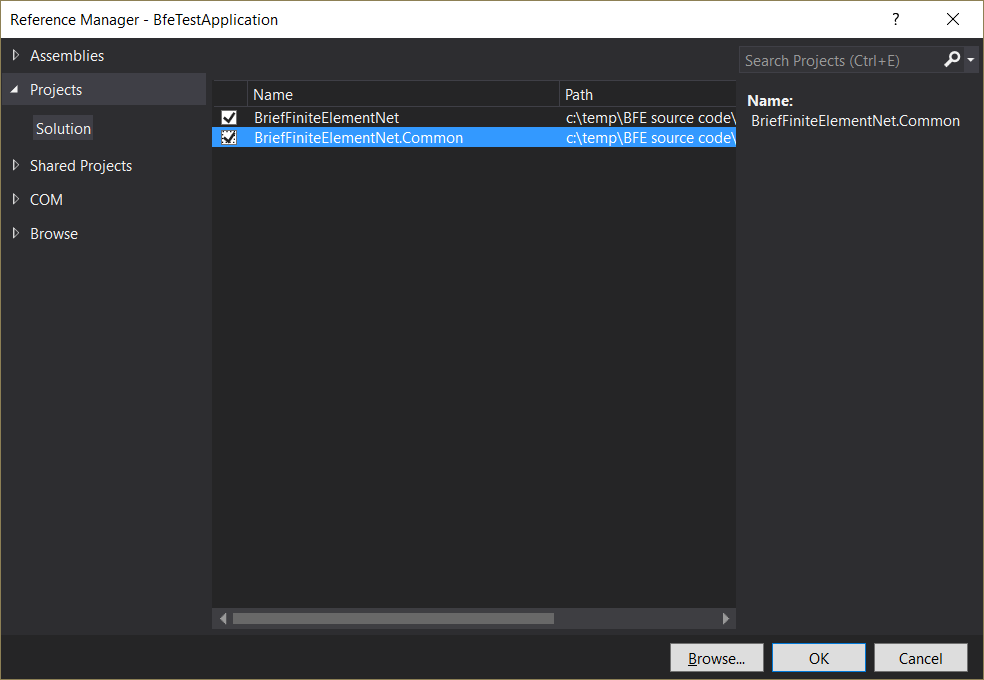
Start Coding with BFE
Now things are ready to start coding. Open the Program.cs file in project BfeTestApplication inside Visual Studio, it should be something like this:
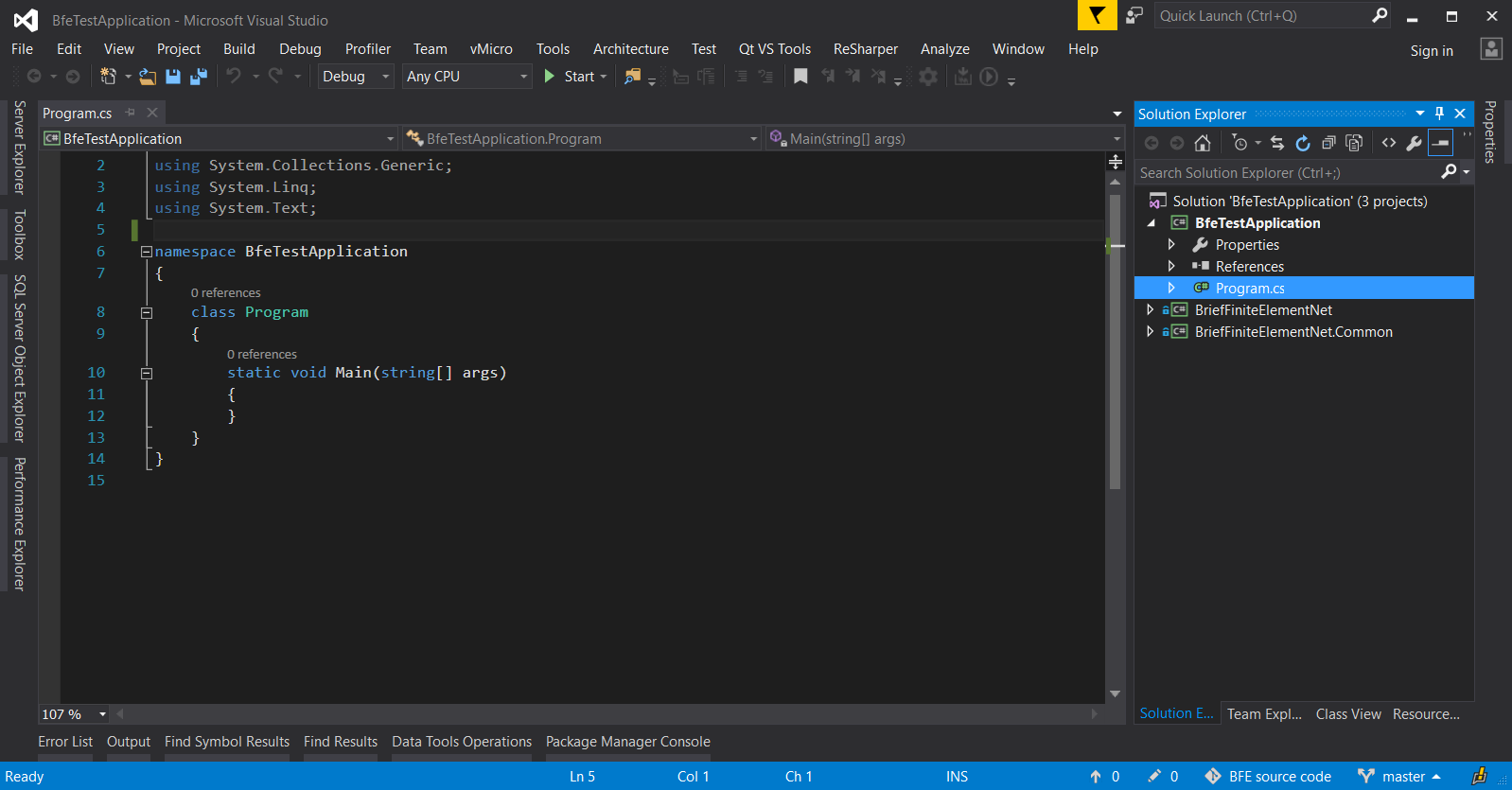
The static void Main(string[] args) method will execute once we start to execute the project. so we should add our code inside it:
//a console beam, totally fixed in start n1, totally free in end n2
// a load of 1000 N
var model = new BriefFiniteElementNet.Model();

Node n1, n2;

model.Nodes.Add(n1 = new Node(x:0.0, y:0.0, z:0.0) { Constraints = Constraints.Fixed });
model.Nodes.Add(n2 = new Node(x:1.0, y:0.0, z:0.0) { Constraints = Constraints.Released });

var elm = new BarElement(n1, n2);

model.Elements.Add(elm);

elm.Section = new BriefFiniteElementNet.Sections.UniformParametric1DSection(a: 0.01, iy: 8.3e-6, iz: 8.3e-6, j: 16.6e-6);//section's second area moments Iy and Iz = 8.3*10^-6, area = 0.01
elm.Material = BriefFiniteElementNet.Materials.UniformIsotropicMaterial.CreateFromYoungPoisson(210e9, 0.3);//Elastic mudule is 210e9 and poisson ratio is 0.3

var load = new BriefFiniteElementNet.NodalLoad();
var frc = new Force();
frc.Fz = 1000;// 1kN force in Z direction
load.Force = frc;

n2.Loads.Add(load);

model.Solve_MPC();//or model.Solve();

var d2 = n2.GetNodalDisplacement();

Console.WriteLine("Nodal displacement in Z direction is {0} meters (thus {1} mm)", d2.DZ, d2.DZ * 1000);//print the Dz of n2 into console
Console.WriteLine("Nodal rotation in Y direction is {0} radians (thus {1} degrees)", d2.RY, d2.RY * 180.0 / Math.PI);//print the Rz of n2 into console

Console.WriteLine("Press any key to continue");
Console.ReadKey();
also add two using directives on top of file:
using BriefFiniteElementNet;
using BriefFiniteElementNet.Elements;
finally it should look like:
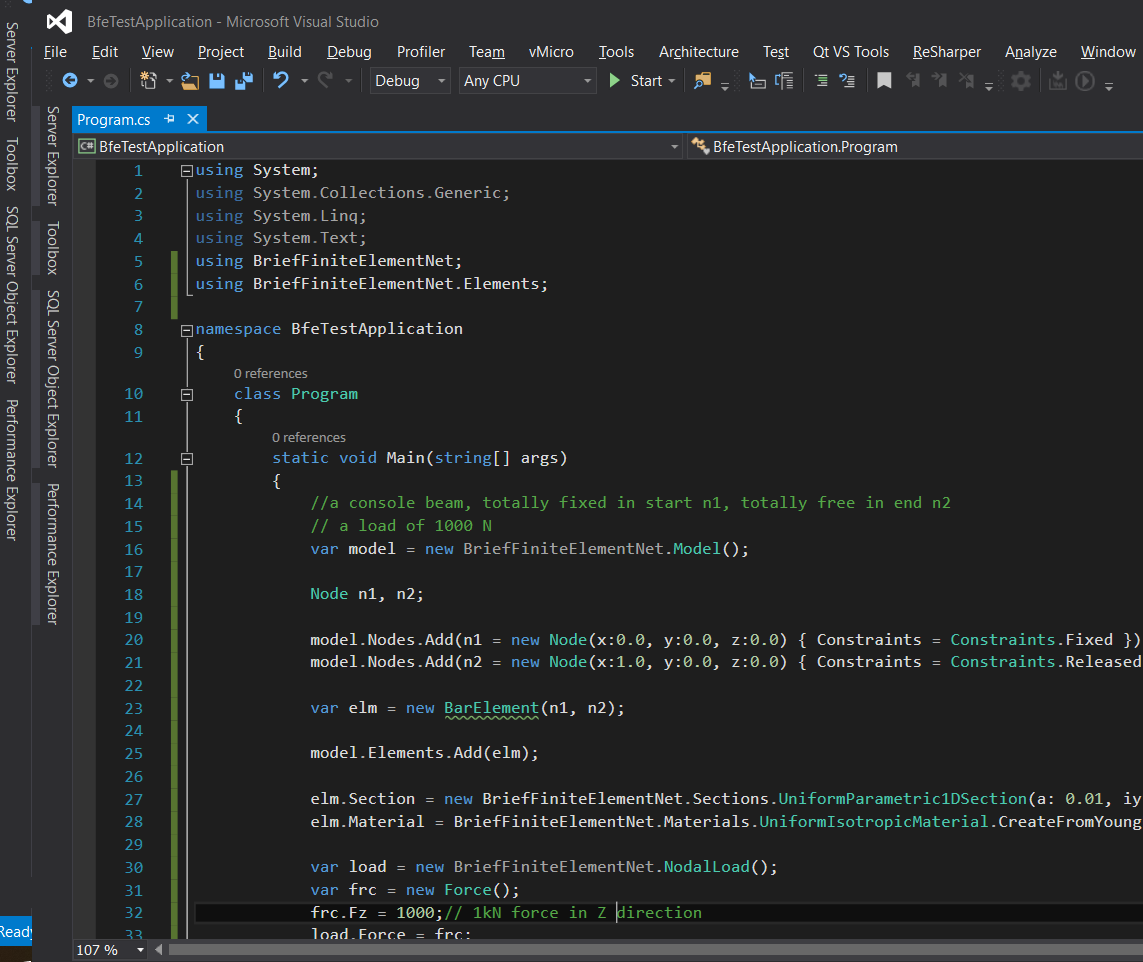
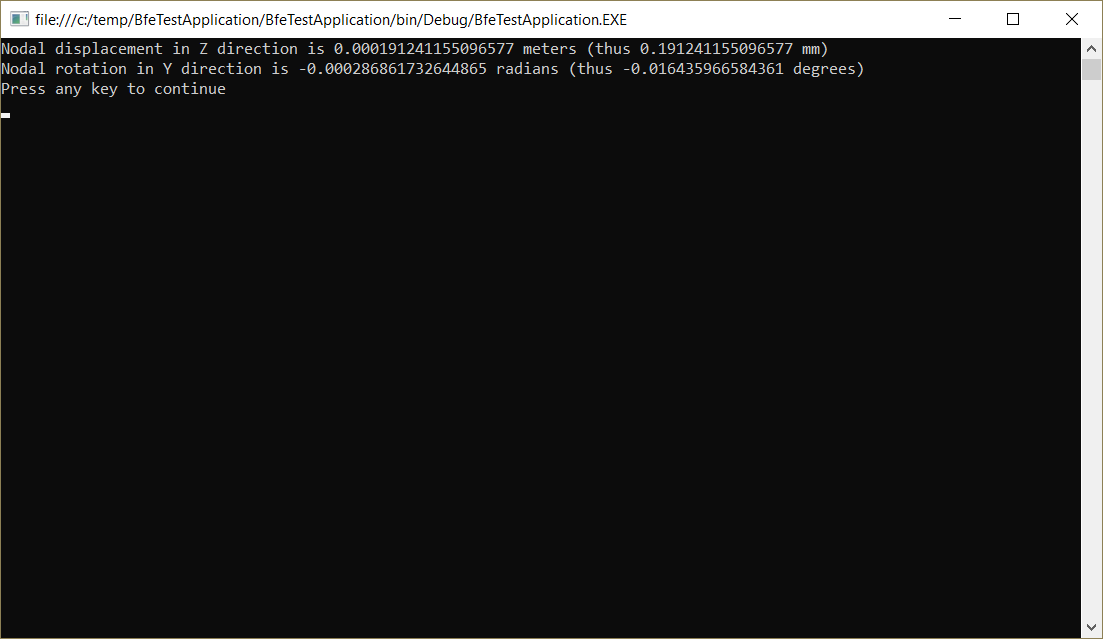
Then we start debug by pressign F5 key or “Debug” menu, then “Start Debugging”. console window should show up like this: